What Is Red Eye Removal?
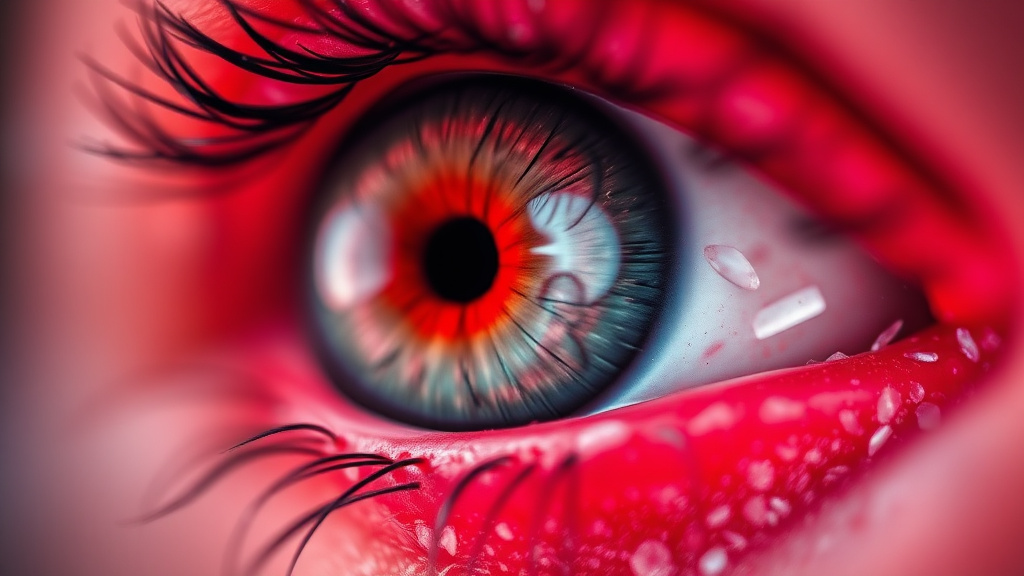
Red eye is one of the most common and frustrating photography problems, especially when capturing precious moments with flash photography. That eerie red glow in people's eyes can ruin otherwise perfect photos from parties, family gatherings, and special events. The red eye effect occurs when camera flash reflects off the retina, creating an unnatural red or orange appearance in the pupils. While professional photo editing software can fix this issue, most solutions require expensive subscriptions, technical expertise, or time-consuming manual editing.
Luxoret's Red Eye Removal tool changes the game entirely. This free, AI-powered solution lets you fix red eyes in seconds without downloading software or learning complex editing techniques. Simply upload your photo, mark the affected eyes, and watch as the tool automatically restores natural-looking pupils. Whether you're a parent preserving family memories, a social media creator perfecting your content, or a professional preparing images for important presentations, this tool delivers professional results instantly.
What sets this tool apart is its local processing capability, which means your photos never leave your device during the editing process. This ensures complete privacy while maintaining 100% of your original image quality. No compression, no degradation, no compromises—just clean, natural-looking eyes that make your photos shine. Try Red Eye Removal free on Luxoret and transform your flash photography today.
Key Features
Instant AI-Powered Detection - Advanced algorithms automatically identify and isolate red eye areas with precision, reducing the manual work required to just a simple click or tap on affected eyes.
Local Processing for Complete Privacy - All image processing happens directly in your browser, meaning your personal photos never get uploaded to external servers, ensuring maximum privacy and security for your memories.
Zero Quality Loss - Unlike many online tools that compress images, this solution maintains your original photo's full resolution and quality, preserving every detail of your precious moments.
Natural-Looking Results - Sophisticated color correction technology replaces red reflections with realistic pupil colors that match natural eye appearance, avoiding the artificial look common in basic editors.
Multiple File Format Support - Upload and edit images in various formats including JPEG, PNG, and WebP, making the tool compatible with photos from any camera or smartphone.
Batch Correction Capability - Mark and fix multiple sets of eyes in a single photo efficiently, perfect for group shots and family portraits where several people need correction.
Completely Free Access - No hidden costs, no watermarks, no subscription requirements—professional-grade red eye removal available to everyone at no charge.
How to Use Red Eye Removal: Step-by-Step
Step 1: Upload Your Photo - Navigate to the Red Eye Removal tool and click the upload button to select your image. You can drag and drop files directly into the interface or browse your device's folders. The tool accepts all common image formats from smartphones, digital cameras, and scanned photos.
Step 2: Identify Affected Eyes - Once your image loads, carefully examine the photo to locate all instances of red eye. Zoom in if needed to ensure you don't miss any subtle cases, especially in group photos where some red eye effects might be less obvious than others.
Step 3: Mark the Red Eyes - Click or tap directly on each red pupil you want to correct. The tool's intelligent detection will automatically identify the red eye region around your click point. For best results, aim for the center of the red reflection. You can mark multiple eyes before processing.
Step 4: Process and Review - Click the process or apply button to let the AI work its magic. Within seconds, the tool will analyze the marked areas and replace the red reflections with natural-looking dark pupils that match realistic eye appearance. Review the results carefully, zooming in to check the quality.
Step 5: Download Your Corrected Photo - Once satisfied with the results, download your enhanced image. The corrected photo maintains the original resolution and quality, ready for sharing on social media, printing, or adding to your digital albums. The entire process typically takes less than a minute from upload to download.
Step 6: Repeat for Additional Photos - Need to fix multiple images? Simply upload the next photo and repeat the process. There's no limit to how many photos you can enhance, making it easy to process entire event albums. Start fixing your photos now and see the difference quality editing makes.
Best Use Cases
Family Event Photography - Birthday parties, holiday gatherings, and family reunions often involve flash photography in dimly lit spaces, creating perfect conditions for red eye. Parents and family photographers can quickly salvage precious moments that would otherwise need to be discarded or kept with the unflattering effect. This tool ensures every smile and special moment looks natural and frame-worthy.
Social Media Content Creation - Influencers, content creators, and social media enthusiasts know that photo quality directly impacts engagement. Red eye can make even the most carefully composed selfies or portraits look unprofessional. Quick fixes mean you can maintain your posting schedule without compromising on quality, ensuring your personal brand always looks polished.
Professional Headshots and Portraits - Business professionals, actors, and job seekers need flawless headshots for LinkedIn profiles, resumes, and portfolios. Even professionally taken photos can occasionally suffer from mild red eye, especially in studio settings with multiple light sources. This tool provides the quick correction needed to ensure your professional image is always perfect.
Real Estate and Product Photography - Real estate agents and product photographers sometimes include people in their shots to add scale and warmth. When these supplementary portraits develop red eye, it can distract from the main subject. Quick corrections keep the focus where it belongs while maintaining the human element in your marketing materials.
Event Photography Services - Wedding photographers, party photographers, and event documentarians often shoot hundreds of photos in challenging lighting conditions. While professional cameras minimize red eye, it can still occur. This tool provides a fast batch solution for cleaning up entire photo sets before delivery to clients, maintaining professional standards across large galleries.
Educational and Yearbook Photography - Schools and educational institutions process thousands of student photos annually. Red eye in class photos, yearbook portraits, or school event documentation can be widespread. This free tool offers an economical solution for educators and yearbook committees to ensure every student looks their best in official school memories.
Pro Tips for Better Results
Click Precisely on the Red Center - For optimal results, position your click or tap directly in the middle of the red reflection rather than on the edges. The AI uses your click point as the center of its correction area, so accurate placement ensures the entire affected region gets properly corrected without overcorrecting surrounding areas.
Work with High-Resolution Originals - Always upload the highest quality version of your photo available. While the tool works with any resolution, starting with better source material gives the AI more pixel data to work with, resulting in more natural-looking corrections that blend seamlessly with the surrounding eye detail.
Adjust Your Display Brightness - Before marking eyes for correction, ensure your screen brightness is set to a comfortable level that accurately represents colors. Screens that are too dim or too bright can make it difficult to identify subtle red eye cases or properly evaluate the corrected results.
Process One Eye at a Time for Complex Cases - In photos with varying degrees of red eye severity, consider processing and reviewing each eye individually before moving to the next. This approach gives you more control over the results and makes it easier to identify if any eyes need reprocessing for optimal appearance.
Save Your Original First - Before downloading the corrected version, make sure you have a backup of your original photo. While the tool produces excellent results, having the original ensures you can try different approaches or use other editing tools later if needed for additional enhancements beyond red eye removal.
Frequently Asked Questions
Is Red Eye Removal free to use?
Yes, the Red Eye Removal tool on Luxoret is completely free with no hidden costs, subscriptions, or premium tiers. You can process unlimited photos without any watermarks on your corrected images. This free access is part of Luxoret's commitment to making professional-quality AI tools accessible to everyone, whether you're editing one special photo or processing an entire event album.
What file formats does it support?
The tool supports all major image formats including JPEG, JPG, PNG, and WebP files. This broad compatibility means you can upload photos from virtually any source—smartphones, digital cameras, scanned images, or downloaded pictures. The tool automatically detects your file format and processes it appropriately while maintaining the original quality and format in the downloaded result.
Will my photos be stored or shared?
No, your photos are processed locally in your browser and never uploaded to external servers. This local processing approach ensures complete privacy and security for your personal images. Your photos remain on your device throughout the entire editing process, and Luxoret has no access to view, store, or share your images in any way.
Can I fix red eye in group photos?
Absolutely! The tool is designed to handle multiple instances of red eye in a single photo, making it perfect for group shots, family portraits, and party pictures. Simply mark each affected eye individually, and the tool will process all corrections simultaneously. There's no limit to how many eyes you can fix in a single image.
Does the tool work on mobile devices?
Yes, the Red Eye Removal tool is fully responsive and works seamlessly on smartphones and tablets. The interface adapts to touchscreen controls, allowing you to tap directly on red eyes for marking. This mobile compatibility means you can fix photos immediately after taking them, perfect for quick social media sharing or sending corrected photos to friends and family.
What if the correction doesn't look natural?
The AI is designed to produce natural-looking results in the vast majority of cases. If a correction doesn't meet your expectations, try clicking more precisely in the center of the red area or ensure you're working with a high-resolution image. The tool's algorithms analyze surrounding eye details to create realistic pupil colors, but extremely low-resolution images or unusual lighting conditions may occasionally require multiple attempts for optimal results.
Can I undo changes before downloading?
While the tool processes corrections quickly, you can always re-upload your original photo and try different marking positions if you're not satisfied with the initial results. Since processing happens locally and your original file remains unchanged on your device, you maintain complete control over the editing process and can experiment freely without risk of losing your original image.
Start Creating with Red Eye Removal Today
Don't let red eye ruin your perfect photos any longer. With Luxoret's free Red Eye Removal tool, professional-quality corrections are just seconds away, no expertise required. Transform your flash photography from flawed to flawless and ensure every memory looks as good as it felt. Try Red Eye Removal now — it's free and discover how easy professional photo editing can be.